

HOW DO I ADD AN INCIDENT
With the incidents section open (QualCare Dashboard > CASI > Incidents/Accidents), click Add Incident/Accident
The add incident window opens
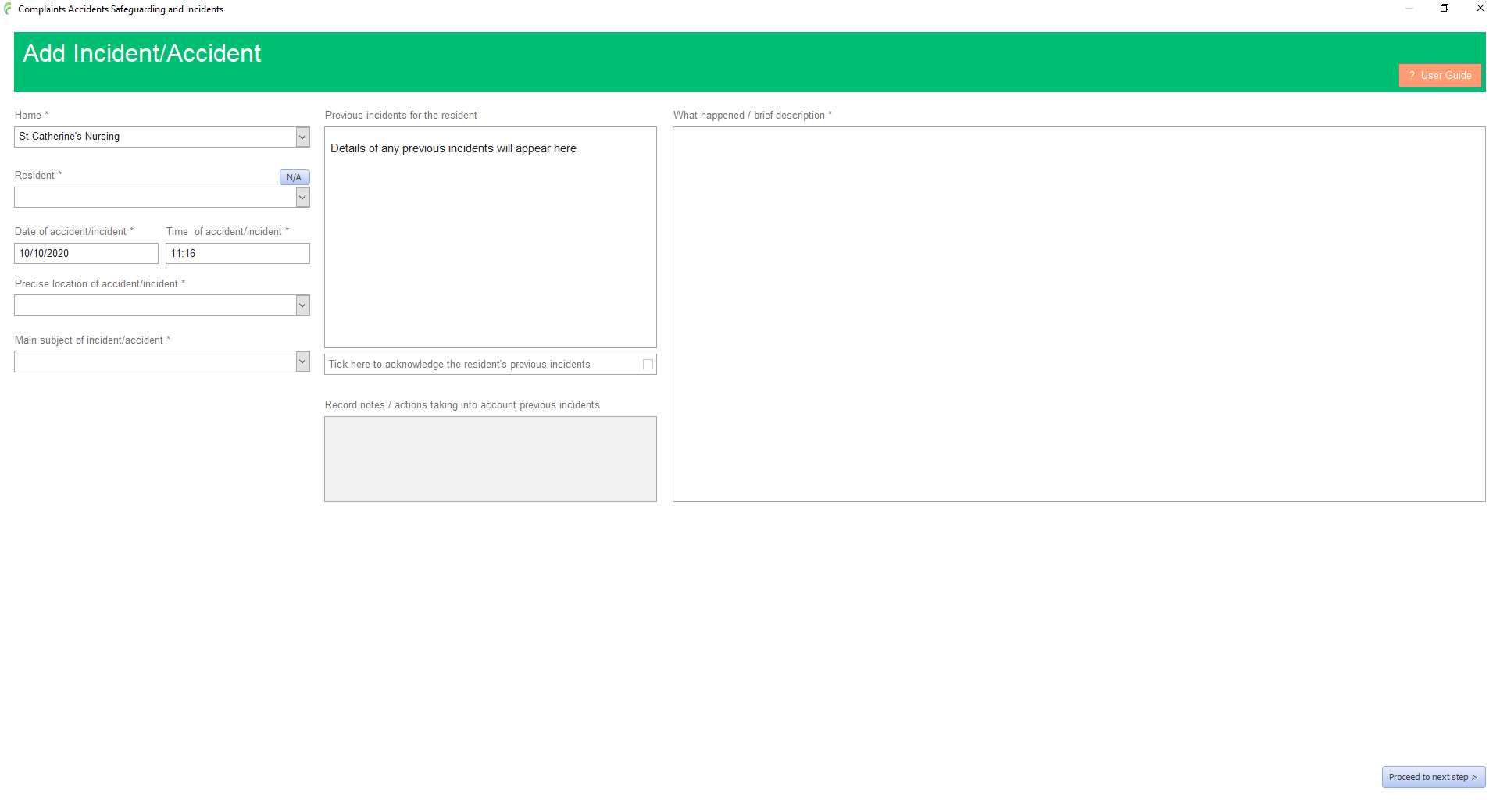
Home
Select the required home. This will be limited to your available homes
Resident
Select the required resident from the drop down list, or if appropriate, click the N/A icon to set the entry to Not Applicable (organisational changes)
If the selected resident has previous incidents stored in the system, the previous incidents panel updates to reflect this. The incidents can be cycled through by using the forward and back buttons located at the bottom of the panel. Previous incidents must be acknowledged by ticking the box and appropriate notes must be added.

Date and Time
The date and time default to when the form was opened, set these values as required
Location
Select the location of the incident or if appropriate, select N/A icon to set the entry to Not Applicable (organisational changes)
Please speak to Head Office if new locations need to be added to the list
Main subject of incident/accident
Select from the list the main subject area of the incident.
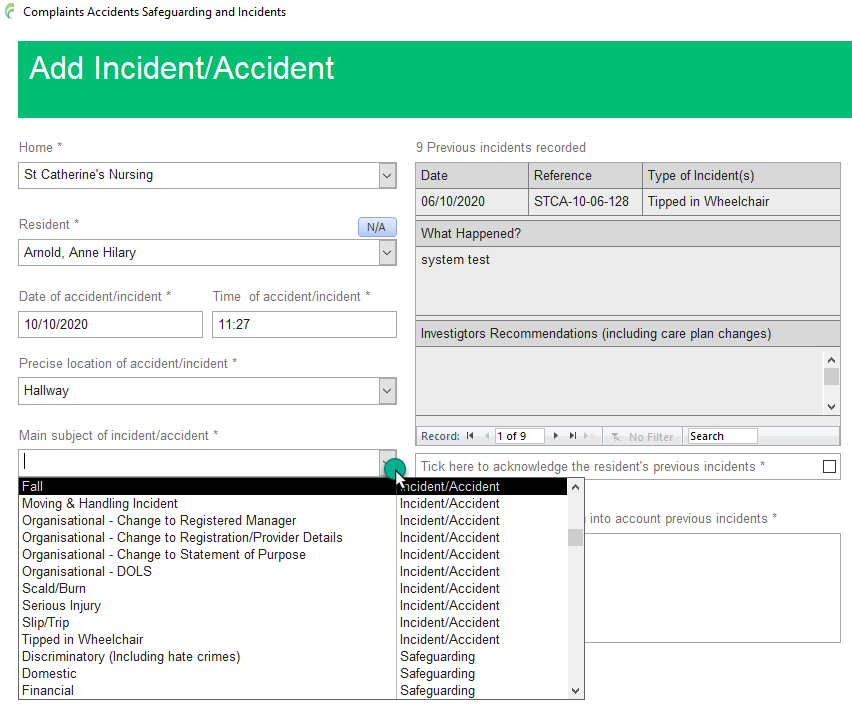
Note that the list is split into two categories; standard incidents/accidents and safeguarding incidents.
If a selection is made from safeguarding, the safeguarding box is automatically ticked and cannot changed. If a selection is made from the standard incidents/accidents, the safeguarding box is optional.
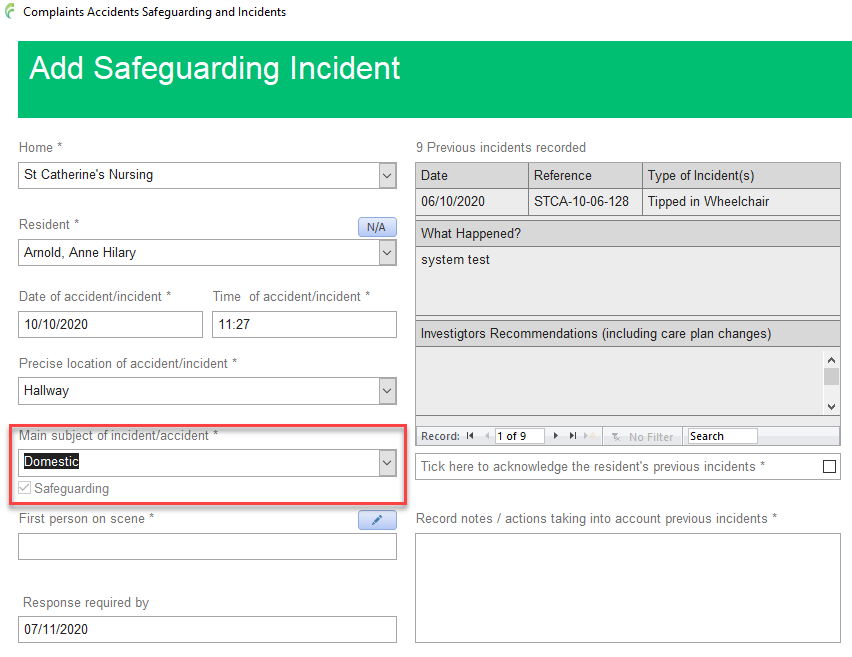
The system will calculate the date that a response is required by based on the incident type selected. This is displayed towards the bottom left of the form
More sub categories can be added later if required in the Accident/Incident Report
First person on scene
Note, if an Organisational category is selected from the Main Subject of incident/accident, the First person on scene changes to Manager (organisational)
Click the pencil edit icon and either select the approprate member of staff from the select staff list, or manually enter the details of the person in the First person on the scene window
An example of a completed form will look something like this
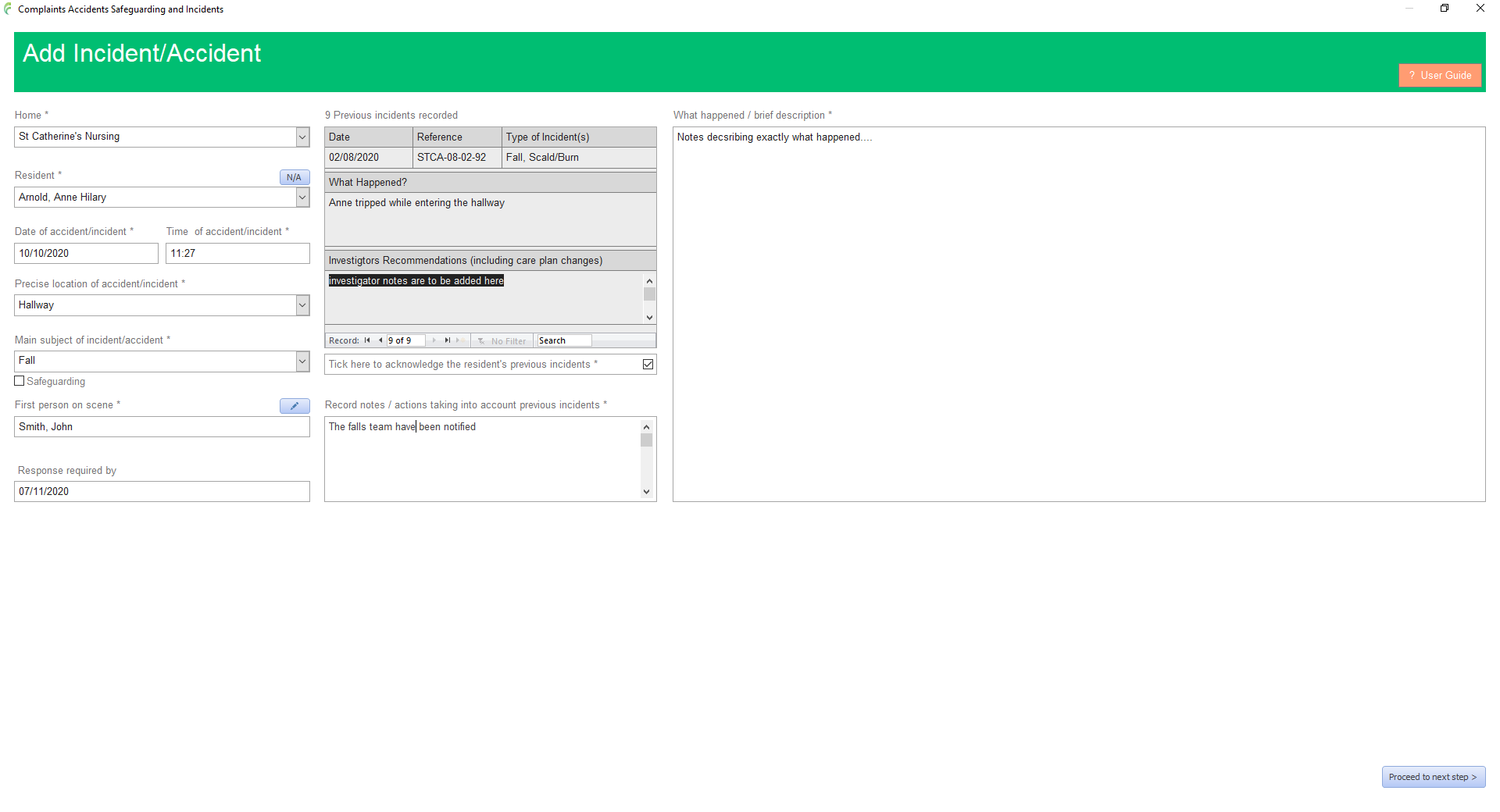
With everything filled in, click Procced to next step
The incident is added to CASI and an incident reference is automatically generated which must be used in all correspondence about the incident
The Incident Management Window will open showing details from the newly added incident
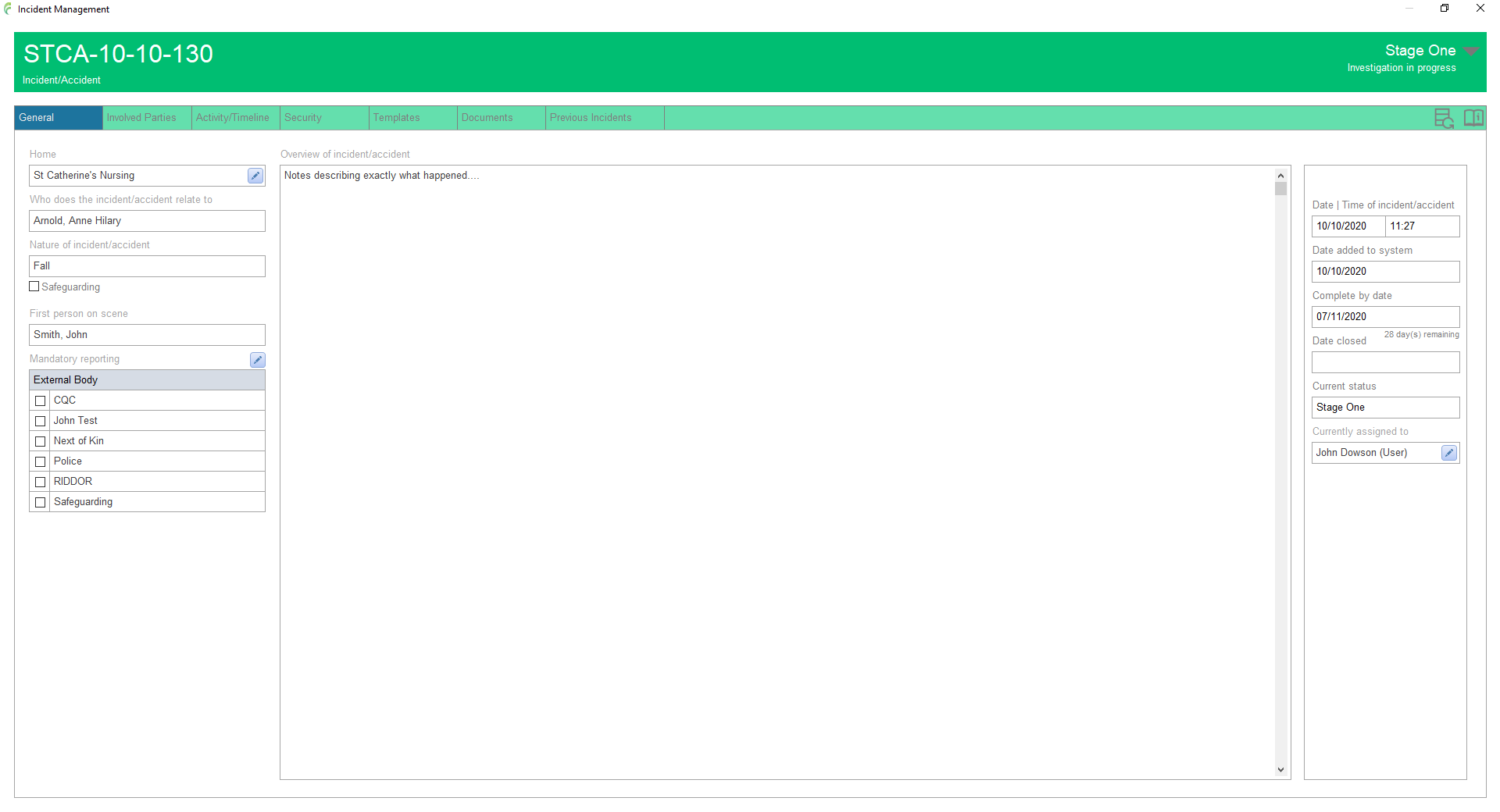
Incidents are automatically initially assigned to the person who added it