

COMPLAINT INVESTIGATION FORM
The complaint investigation form holds the majority of the information relating to a complaint
It is created automatically and prefilled with information recorded at the time when a complaint is added to the system
The form is very similar for both Minor Concerns and Formal Complaints with the main differences being in the Approval | Response section. Minor concerns do not require Head Office approval so this signature box is not present
Open the required complaint and click the Activity/Timeline tab in the Incident management window
The Complaint investigation form is opened by clicking the open icon as shown
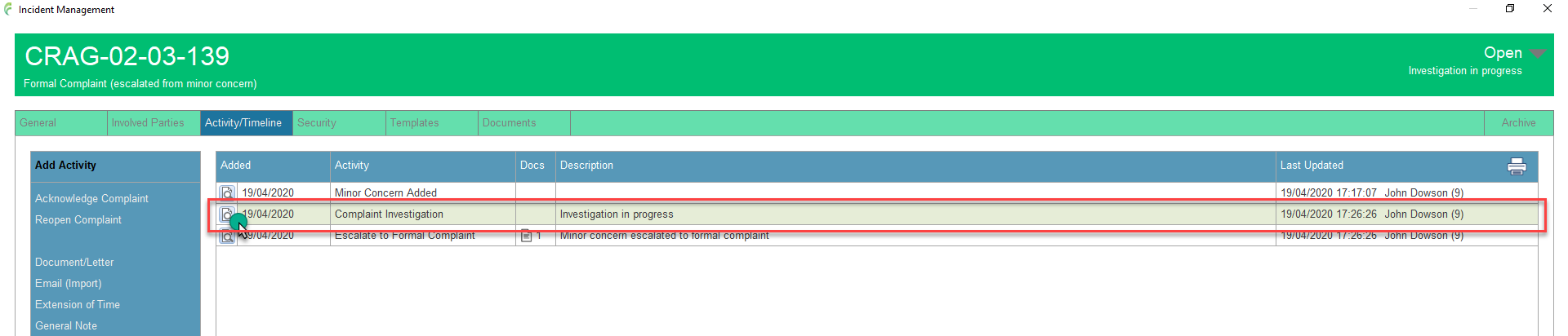
The investigation form is spilt into 3 sections (tabs); Overview, Investigation and Approval/Response

Additional tabs are added if the complaint has been reopened to allow further responses to be made: Additional Response and Final Response
Please see Complaint Stages for information about the various stages of a complaint

Completing the form
The form is generally edited by clicking the pencil edit button next to the section to be completed and making the required changes
There is no overall save button for the form, the changes are saved as each section is edited
If a section is not relevant to the complaint, clicking the N/A button sets it to N/A for not applicable.
The form generally operates the same throughout but a few sections warrant additional guidance and these are covered below
Letter/Email of complaint
If a letter or email of complaint was added at the time that the complaint was added to the system, the details would appear in this section. Otherwise, it will be blank

For full details on how to add or edit this information, see the Letter/Email of Complaint activity
Acknowledge Complaint
If the Acknowledge Complaint activity has been completed, the details will appear here. Otherwise, it will be blank. This information cannot be changed once added

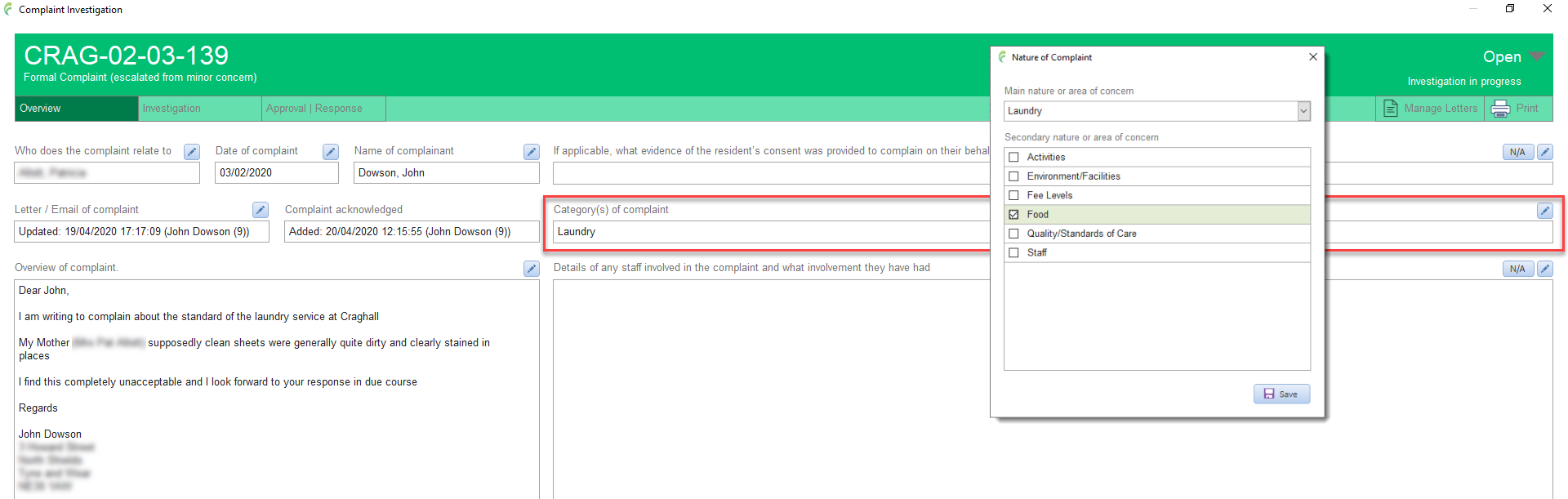
Category(s) of Complaint
When a complaint is added to the system, a single category or subject of the type of complaint is assigned to it
This can be changed and additional categorys added in this section
Select the appropriate items from the list and click Save
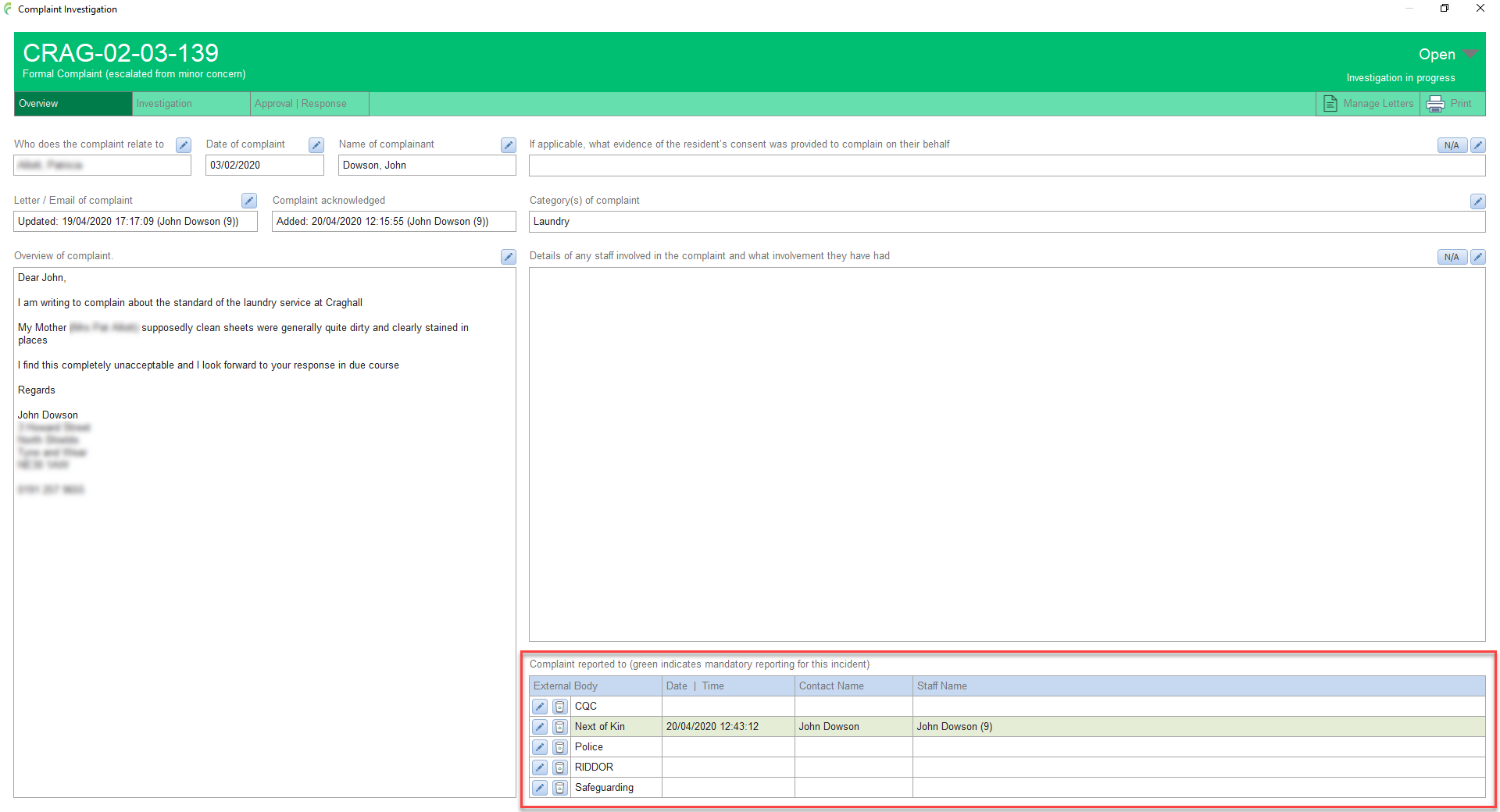
Complaint Reported to
This section manages information relating to reporting the complaint to various people and organisations
Any external body highlighted in green, indicates that the reporting for the body is mandatory. This is controlled in the Mandatory Reporting section
Any Reported to External Body activities added for the complaint will be listed in the section including date/time and contact etc
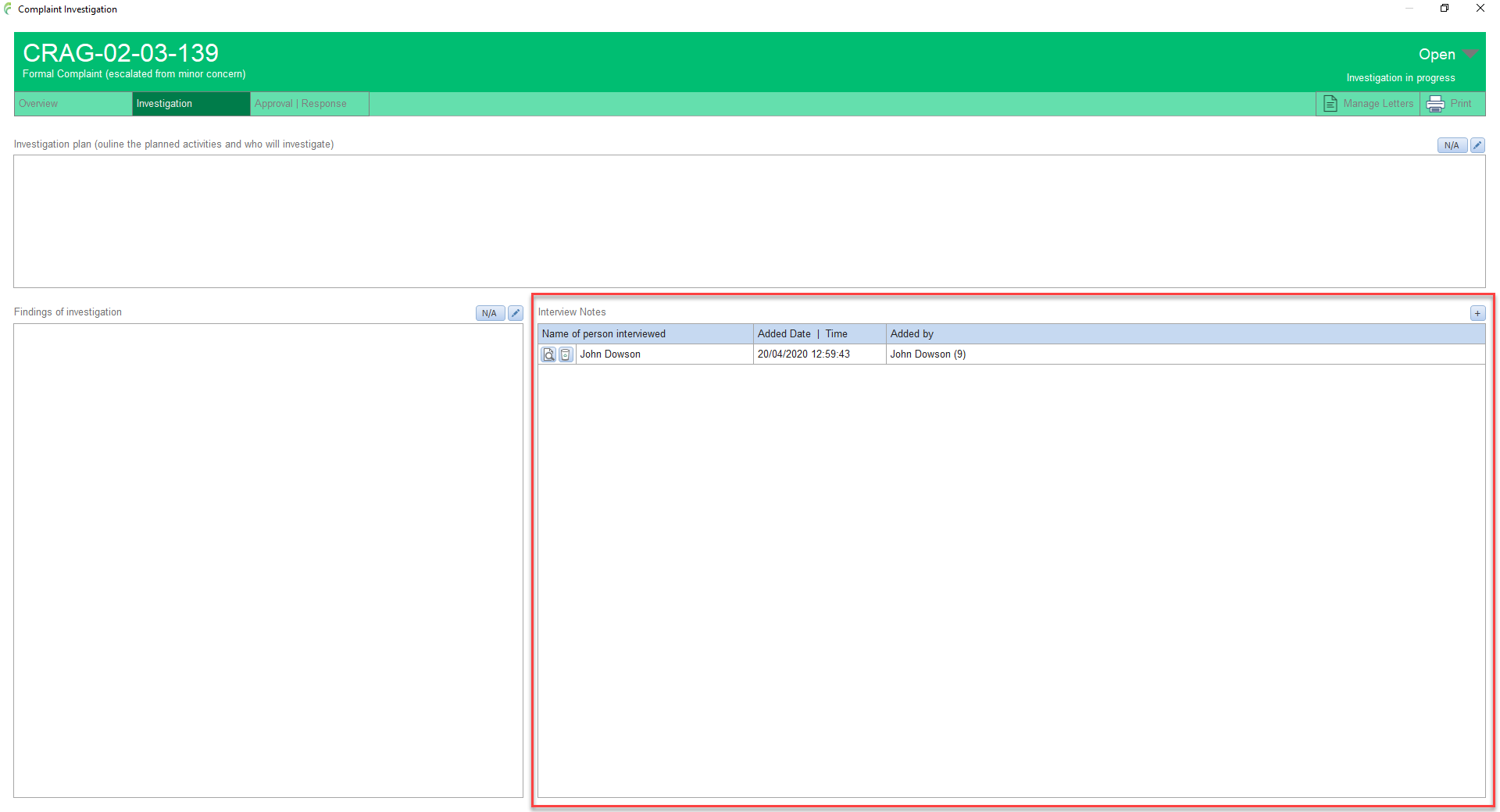
Interview Notes
This section manages interview notes relating to the investigation of the complaint
Any Interview Notes activities added for the complaint will be listed in the section including date/time and contact etc
Response
When a complaint is to be responded to in writing, prepare the appropriate letter using the Manage Letters tool
The complaint investigation form is very similar for both Minor Concerns and Formal Complaints with the main differences being in the Approval | Response section. Minor concerns do not require Head Office approval so this signature box is not present
Approved by
Once the complaint has been investigated and the form has been completed along with the response letter if appropriate, it can be signed in the Approved by box by clicking the pencil icon and entering your password when prompted
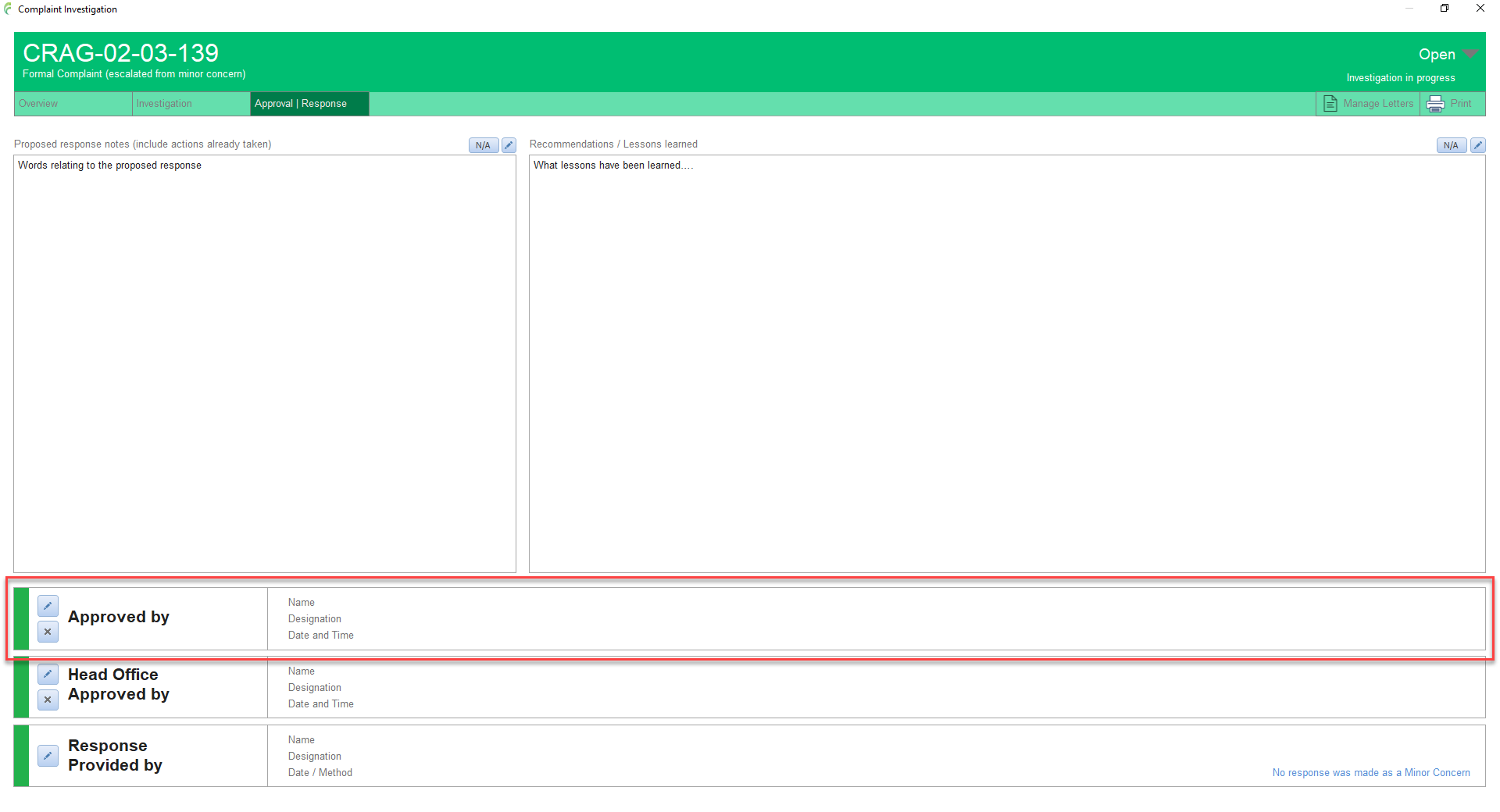
Signing the Approved by box
- Notifies Head Office that the complaint now requires Head Office Approval
- Sets the status of the Complaint to Awaiting Head Office Approval
- Locks the contents of the form up to this point with the exception of the Complaint Reported to section. This remains editabe at this point to allow for additional reporting if deemed necessary by Head Office
Head Office Approved by
Head Office use only, not present in minor concerns
If a letter of response has been prepared, this can be accessed via the Manage Letters tool where it can also be revised and signed as required. Alternatively, one can be created now
After checking the contents of the form and any additional supporting information in the Activity timeline, the complaint can be signed in the Head Office Approved by box by clicking the pencil icon and entering your password when prompted
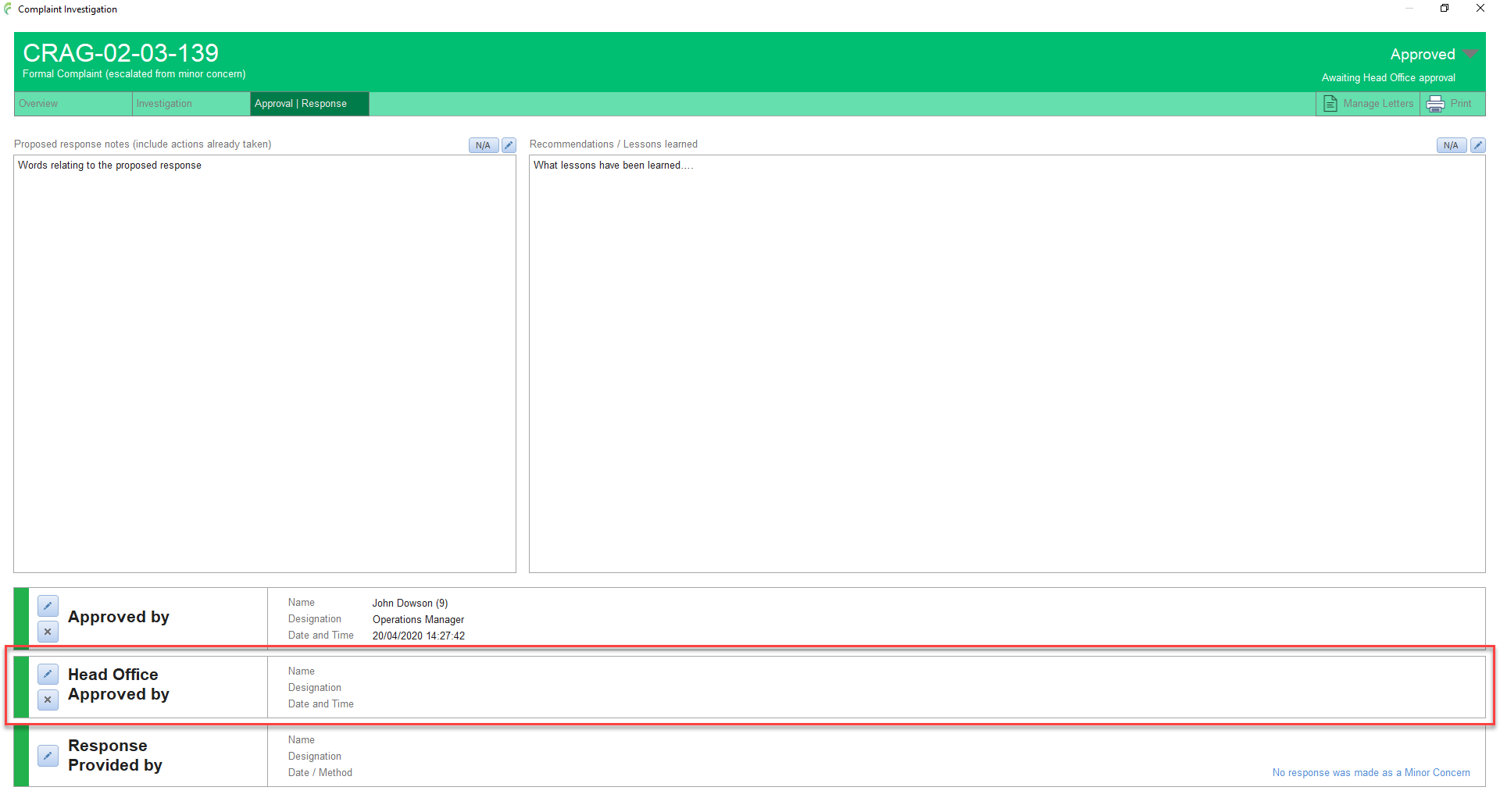
Signing the Head Office Approved by box
- Sets the status of the Complaint to Head Office Approved
- Locks the contents of the form up to this point
The response to the complaint can now be provided
It is important to note that there are no automatic notifications about the fact that a response can now be provided. If the person approving the complaint at Head Office approval stage is not the person to provide the response, then that person needs to be told that it can now be provided
Response Provided by
If a minor concern has been escalated to a formal complaint after a response had been recorded, details of that response is displayed in the bottom right of the box

Clicking the link opens the Response Provided activity to allow the full details to be reviewed including any attached letters or emails
Communicate the response to the complainant using the appropriate method
Letters can be emailed direct from the Manage Letters tool or printed and posted. When emailed, the letter is automatically converted to PDF format
The Response Provided activity records the details of the response

Signing the Response Provided by box (formal complaints)
- Sets the status of the Complaint to Response Provided
- Sets the complaint to automatically close in 28 days time unless it is reopened
- Locks the contents of the form up to this point
In the case of a minor concern, signing this box sets the status to Minor Concern Closed. Unlike formal complaints, minor concerns cannot be reopened but they can be escalated to a formal complaint anytime up to 28 days after closure
For full details of the various stages of a complaint, click here
Once the Response Provided by box is signed, clicking the Open Response icon opens the Response Provided activity to allow the full details to be reviewed including any attached letters or emails

Additional Response
If a formal complaint has been reopened for an additional response, the Additional Response section tab will become visible

Prepare the appropriate letter using the Manage Letters tool
Complete the Proposed Response notes section
Communicate the response to the complainant using the appropriate method
Letters can be emailed direct from the Manage Letters tool or printed and posted. When emailed, the letter is automatically converted to PDF format
The Response Provided activity records the details of the response
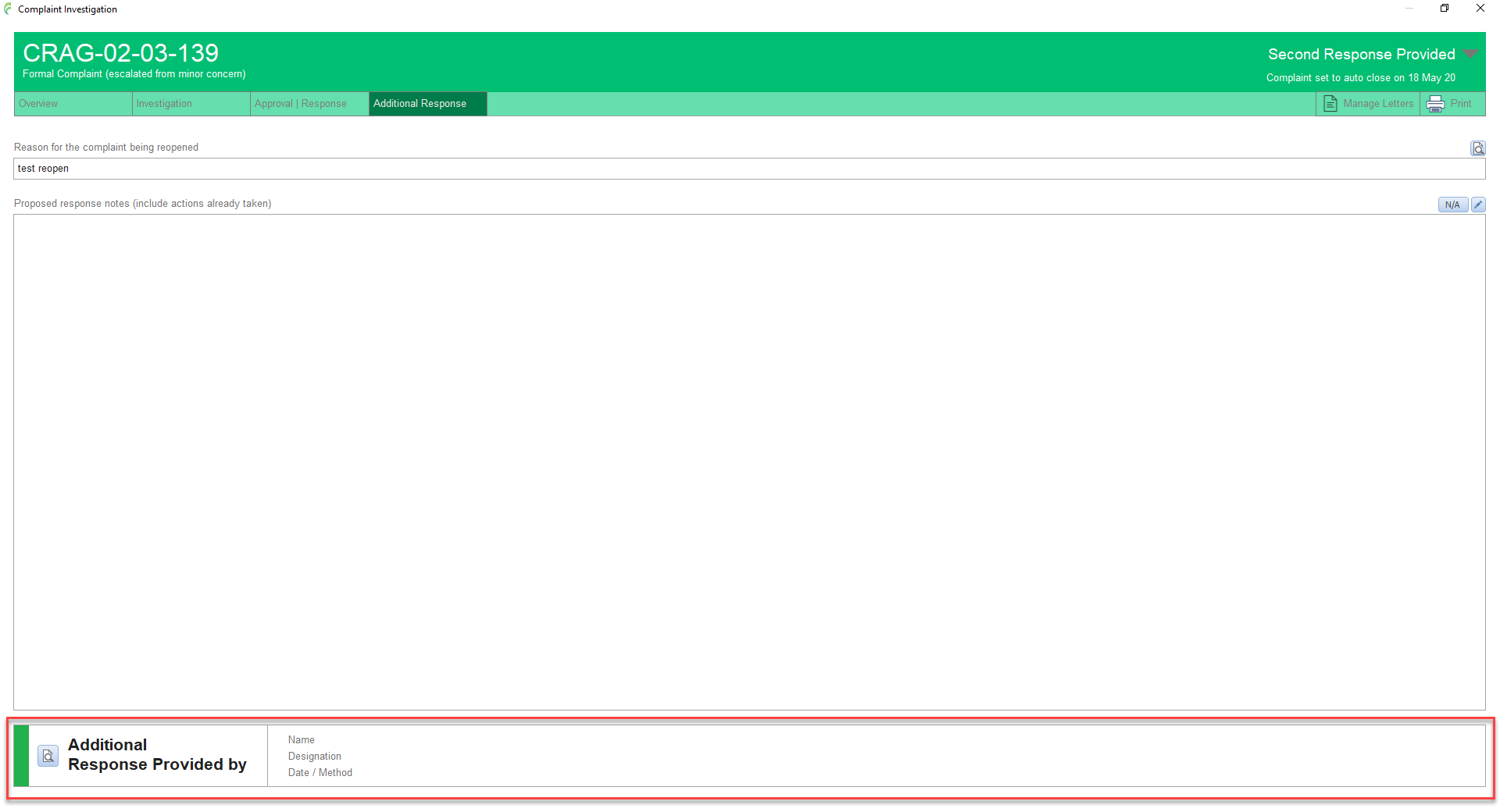
Signing the Additional Response Provided by box
- Sets the status of the Complaint to Second Response Provided
- Sets the complaint to automatically close in 28 days time unless it is reopened again
- Locks the contents of the form up to this point
For full details of the various stages of a complaint, click here
Once the Additional Response Provided by box is signed, clicking the Open Response icon opens the Response Provided activity to allow the full details to be reviewed including any attached letters or emails

Final Response
If a formal complaint has been reopened for a final response, the Final Response section tab will become visible

Prepare the appropriate letter using the Manage Letters tool
Complete the Proposed Response notes section
Communicate the response to the complainant using the appropriate method
Letters can be emailed direct from the Manage Letters tool or printed and posted. When emailed, the letter is automatically converted to PDF format
The Response Provided activity records the details of the response
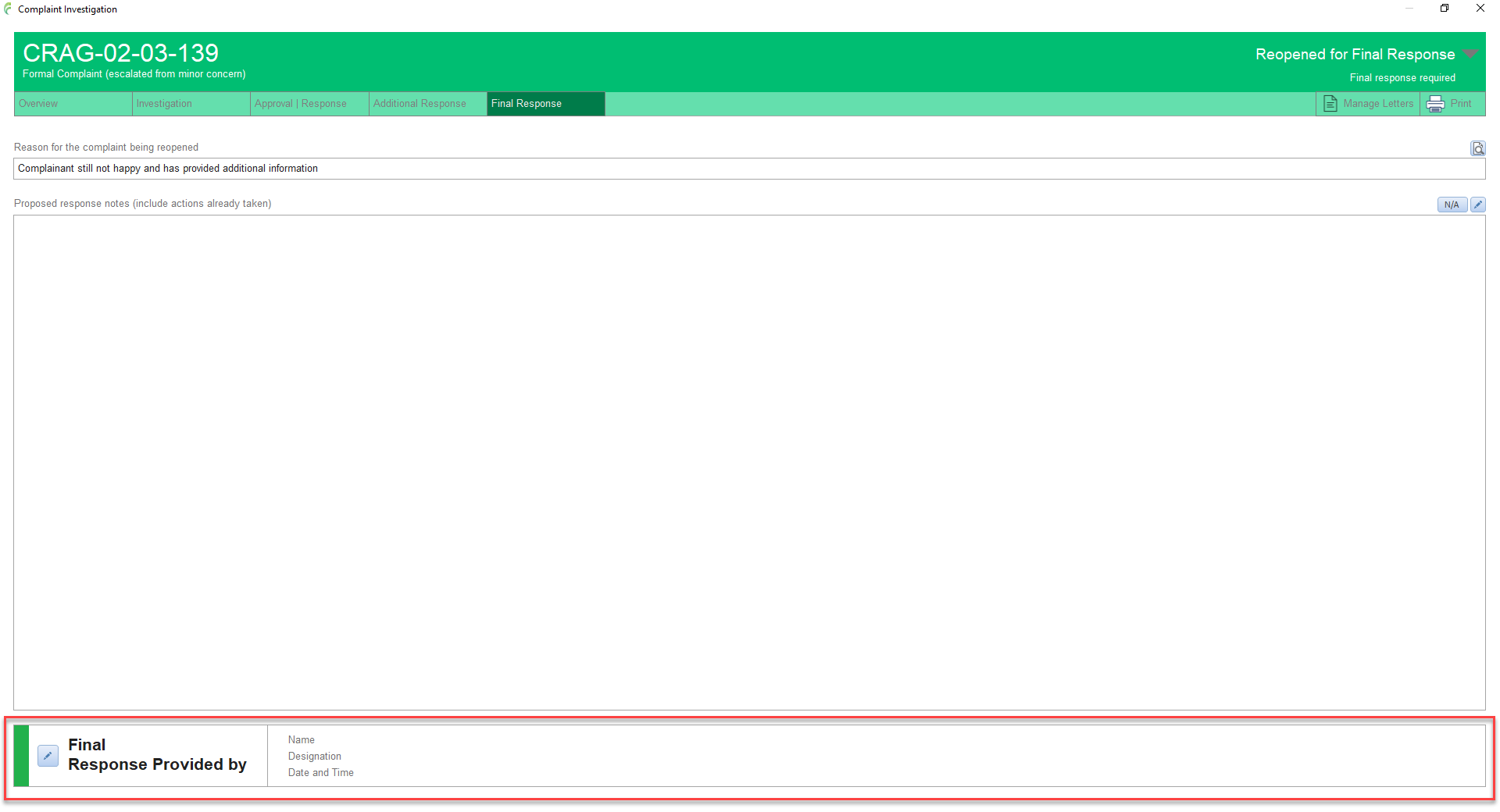
Signing the Final Response Provided by box
- Sets the status of the Complaint to Closed
- Locks the contents of the form up to this point
For full details of the various stages of a complaint, click here
Once the Final Response Provided by box is signed, clicking the Open Response icon opens the Response Provided activity to allow the full details to be reviewed including any attached letters or emails
