
INCIDENT MANAGEMENT WINDOW
When you open an incident the Incident Management Window is the default view
This window is made up of 7 sections (tabs)
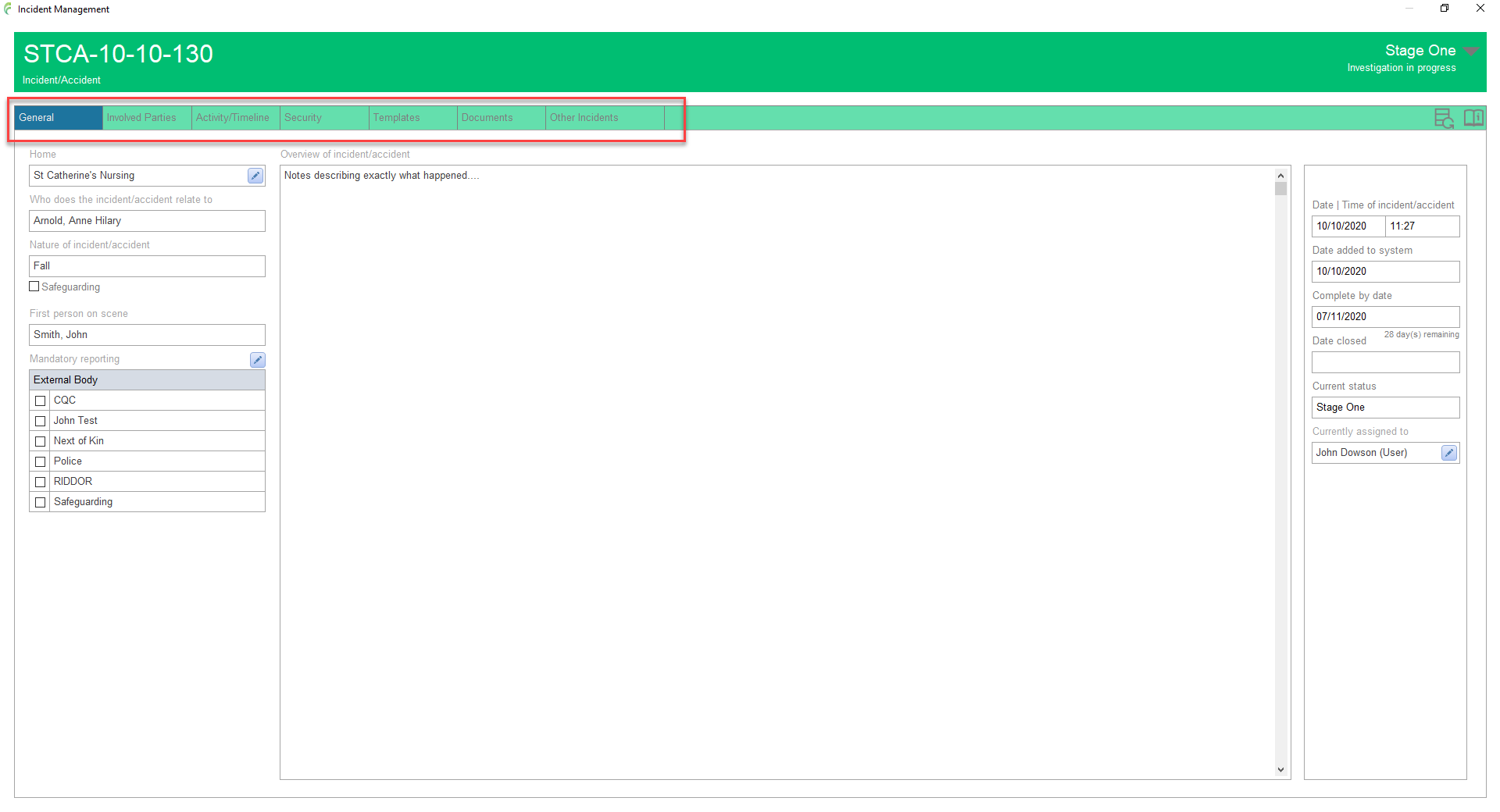
General
The default tab which shows basic general information such as the Home, who the incident relates to and the nature of the incident
It also shows any Mandatory Reporting to External Bodies requirements, the overview and status of the incident, who the investigating officer is and the date by which the incident has to be responded to or closed by
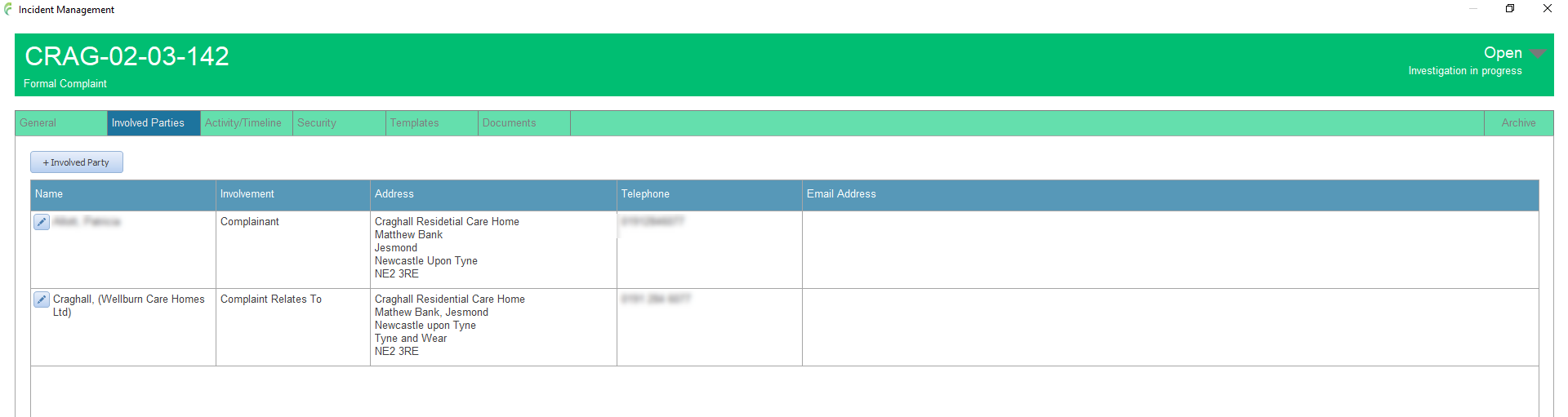
Involved parties
This section lists all parties connected with the incident
Activity / Timeline
This section lists and manages items and activities connected to the incident and forms a convenient time line with quick access to all relevant information.
When an incident is added to the system, an appropriate investigation form is automatically created and added to this list which is prefilled with information recorded at the add stage
For complaints this is known as a Complaint Investigation Form
For incidents/accidents and safeguarding, it is known as an Accident/incident Report

This is where most of the information relating to the investigation and outcomes of the incident will be recorded
Supporting information and tasks relative to the incident are managed by the range of activities listed in the side panel under the Add Activity title with any added activity appearing in the activity timeline
As information is generated or received as part of the investigation, it needs to be recorded using the appropriate activity, for example a letter sent to the complainant would be recorded on the system using the Document/Letter activity
Activities
Acknowledge Complaint (available in complaints only)
Escalate to Formal Complaint (available in minor concerns only)
Reopen Complaint (available in formal complaints only)
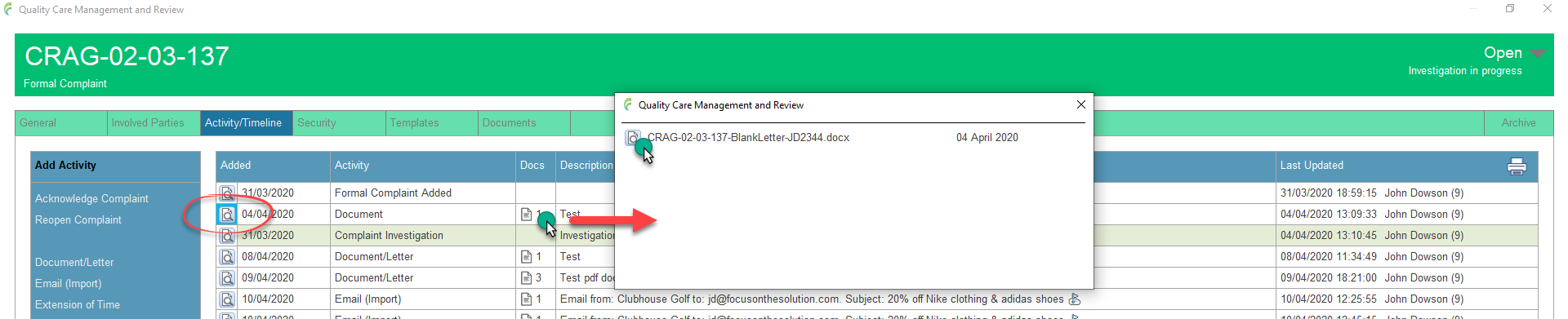
Added Activities can be opened (viewed) by clicking the Open activity icon to the left hand side
If the added activity has documents attached to it, they can be quickly viewed (without having to open the activity) by clicking the document icon and selecting the required one from the list
Additional tools include
Access/Retrieve Documents tool which enables you to quickly package relevant documents together for emailing/copying purposes etc
Manage Letters tool which enables you to quickly create, edit and manage letters including the ability to email letters via Outlook
Security
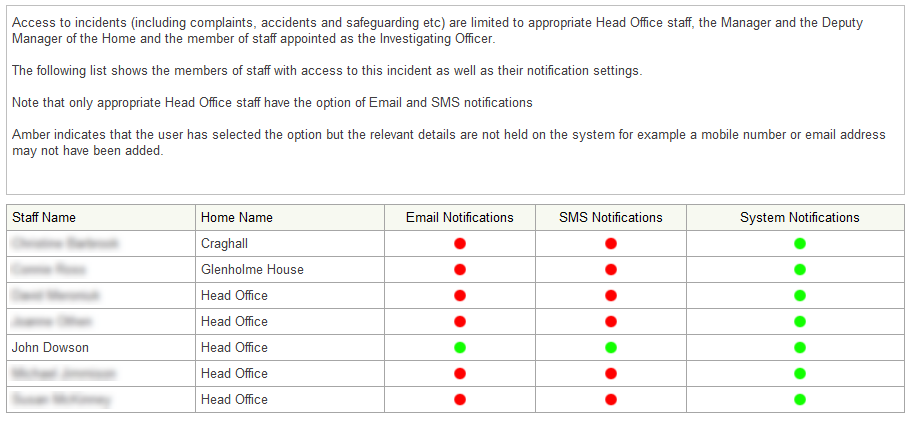
This shows who has access to the incident. By default, access is limited to relevant head office staff, the manager and deputy manager of the home that the incident relates to and the member of staff who the incidentis currently assigned to (the investigating officer). Note that when an incident is added to the system, the user adding it, automatically becomes the investigating officer. This can of course be changed as appropriate
Templates
Lists any templates that may be available for use when investigating an incident. Note that this does not contain letter templates as these are listed seperately in the manage letters tool.
Documents
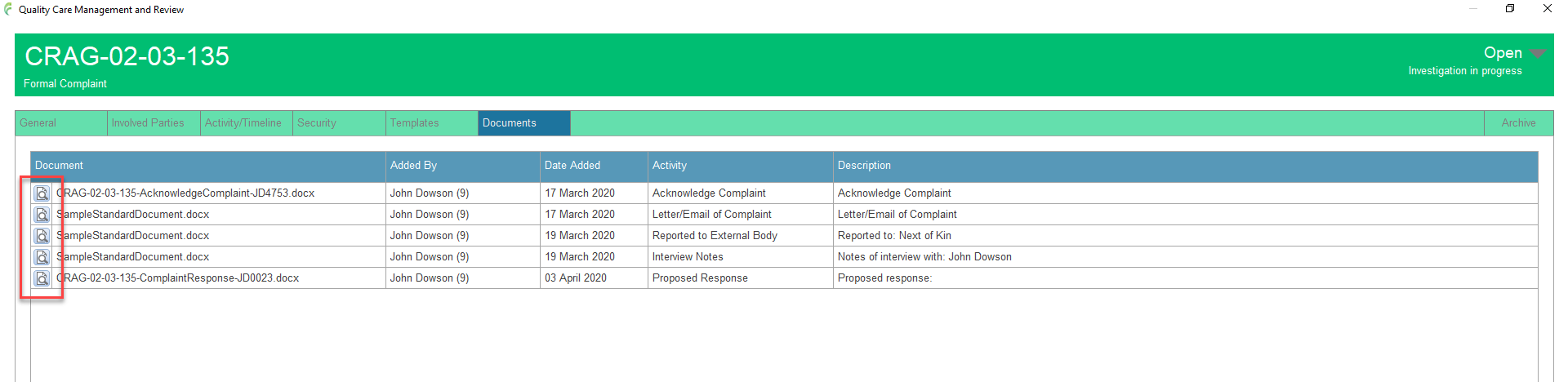
Any documents added to an activity appear in this list forming a convenient index of information. Documents can be opened with a single click.
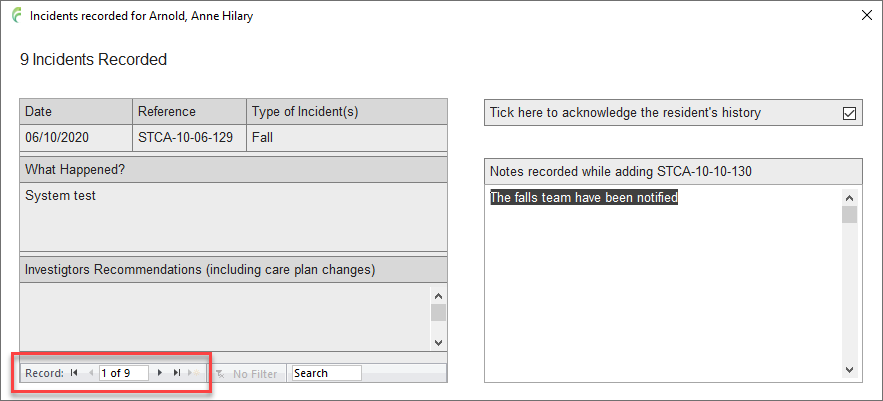
This shows the details of any other incidents recorded on the system for the resident.
The incidents can be navigated by using the forward and back buttons
It also shows the notes recorded at the time that the current incident was added, in acknowledgement of the incidents recorded on the system for the rsident at that time