

ACCIDENT/INCIDENT REPORT
The accident/incident report holds the majority of the information relating to an accident, general incident or a safeguarding incident
It is created automatically and prefilled with information recorded at the time when an incident is added to the system
Open the required incident and click the Activity/Timeline tab in the Incident management window
The Accident/Incident Report is opened by clicking the open icon as shown

The report is spilt into 4 sections (tabs); Overview, Details, Recommended Action and Management Review

Completing the form
The form is generally edited by clicking the pencil edit button next to the section to be completed and making the required changes
There is no overall save button for the form, the changes are saved as each section is edited
If a section is not relevant to the incident, clicking the N/A button sets it to N/A for not applicable.
The form generally operates the same throughout but a few sections warrant additional guidance and these are covered below
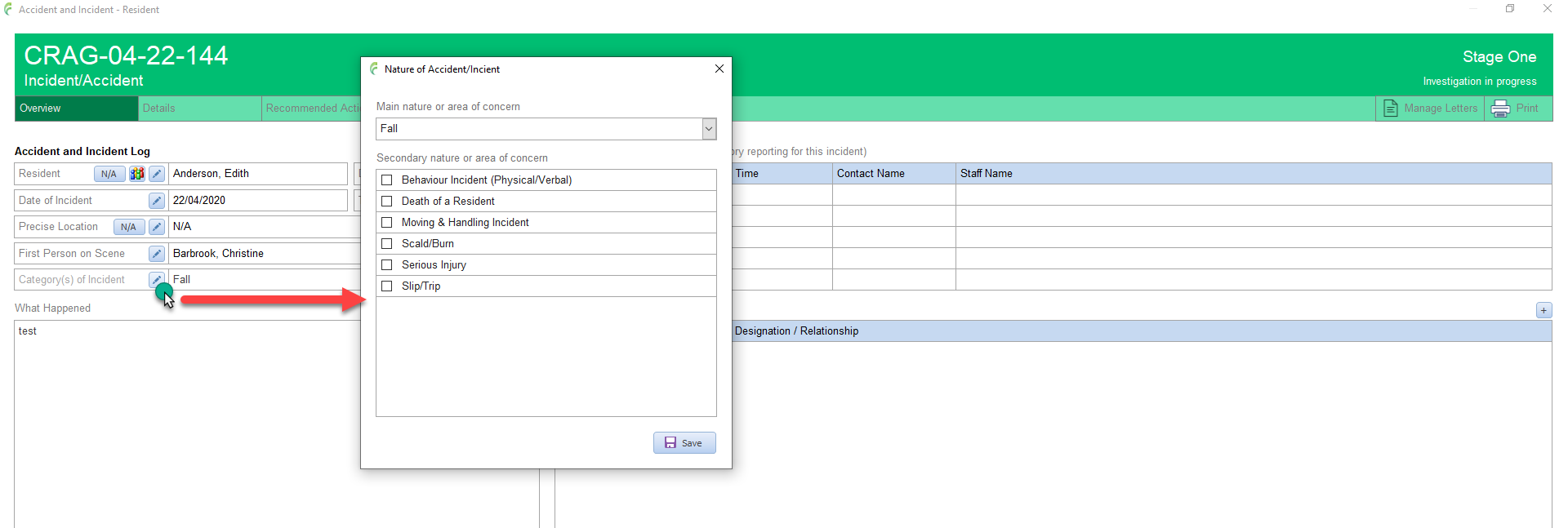
Category(s) of Incident
When an incident is added to the system, a single category or subject of the type of incident is assigned to it
This can be changed and additional categorys added in this section
Select the appropriate items from the list and click Save
Incident Reported to
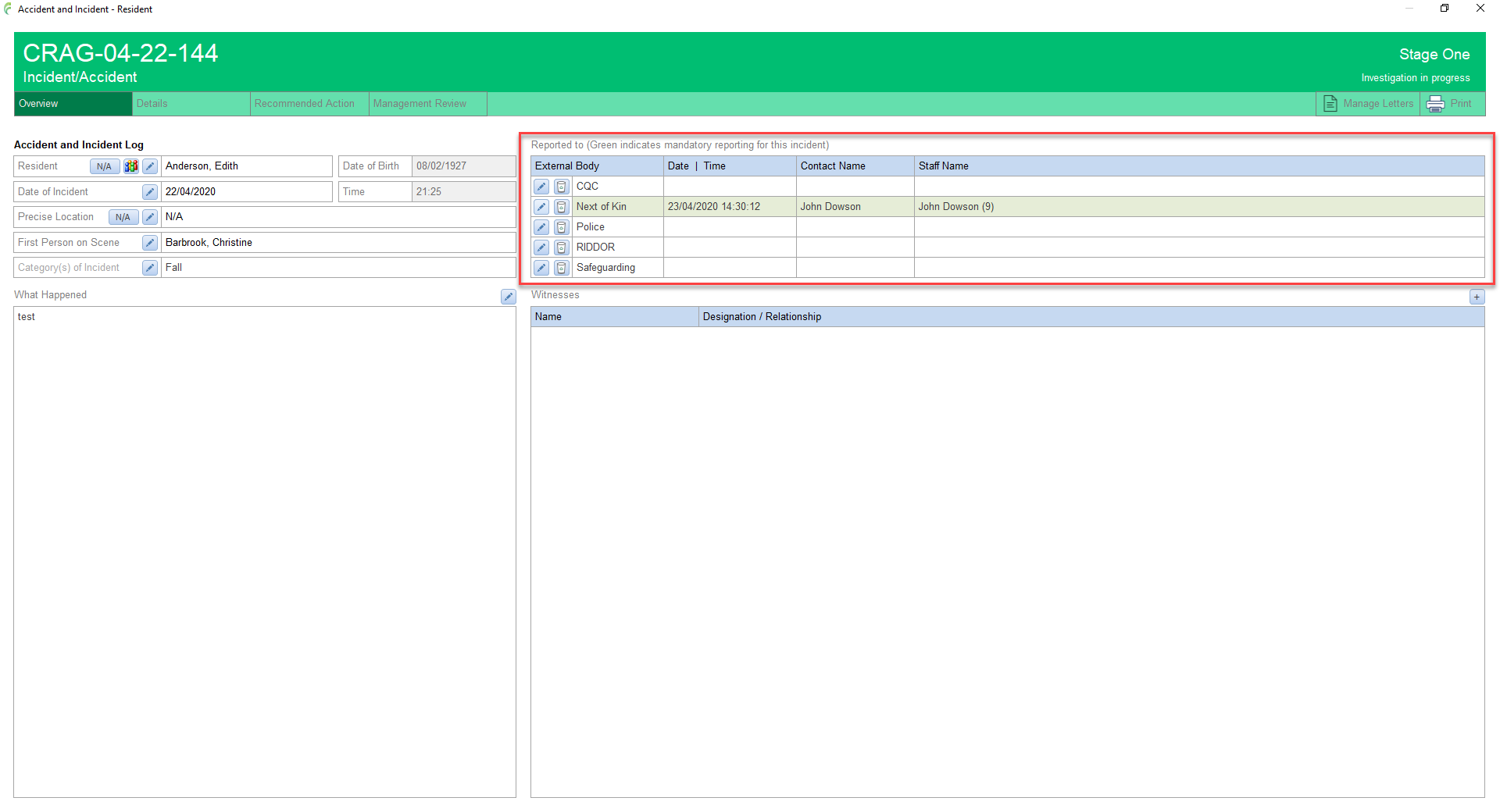
This section manages information relating to reporting the incident to various people and organisations
Any external body highlighted in green, indicates that the reporting for the body is mandatory. This is controlled in the Mandatory Reporting section
Any Reported to External Body activities added for the incident will be listed in the section including date/time and contact etc
Witnesses
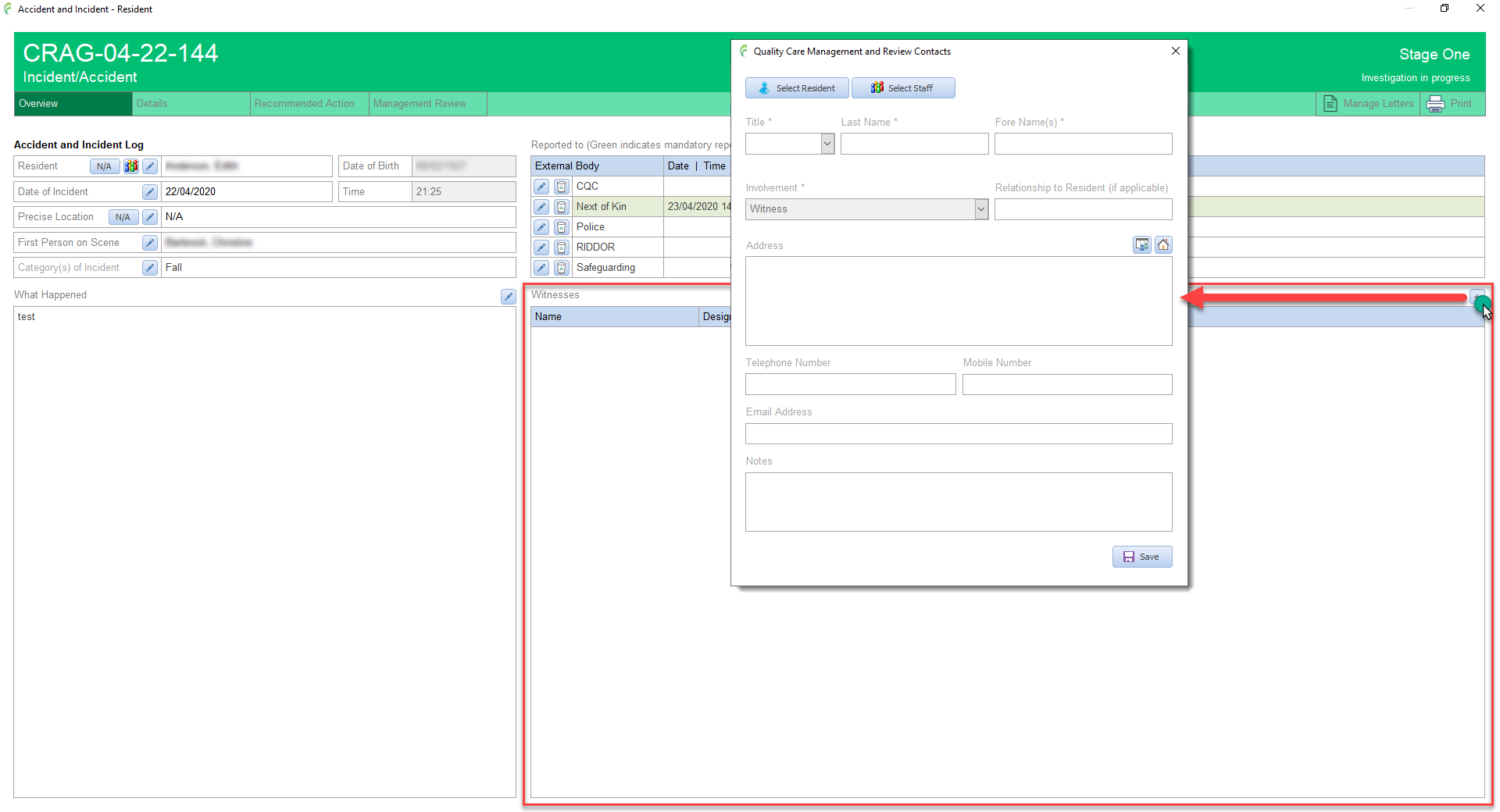
Used to record details of any witnesses to the incident.
Click the Add Witness icon and complete the details of the witness
For Residents, click the Select Resident icon and pick the person from the list
For Members of Staff, cick the Select Staff icon and pick from the list
Or simply enter all of the details manually
Click Save when ready, to update the list in the Accident/Incident Report
Witness details can be edited by clicking the Pencil Edit icon next to the appropriate witness, making the changes and clicking Save

Details of Injuries or Harm (body maps)
This section manages body map diagrams
To add a body map
Click the Add Body Map icon to open the Create Body Map window
Select the Name of the Person that the body map relates to from the list
Select the appropriate diagram for the body map
Select a number dot from the bottom tray and click on the appropriate position on the diagram
The number dots can be moved by clicking on the dot to move to select it and then click at the new position on the diagram
Enter notes for the number dot in the right hand panel
Repeat the process as required
Click Save when ready

The added body map appears in the list
To view a body map
Click the Open icon to view the body map (read only)

Recommended Action
When stage one of the report is complete, it can be signed by the person completing the form
Click the pencil icon and enter your password when prompted

Signing the Person Completing Form box
- Sets the status of the Incident to Management Review
- Locks the contents of the form up to this point with the exception of the Incident Reported to section. This remains editabe at this point to allow for additional reporting if deemed necessary by Management
- Prompts you to notify the relevant member of staff who will be conducting the Management Review
For full details of the various stages of an incident, click here

Management Review
When the management review section is complete, it can be signed by the appropriate person
Click the pencil icon and enter your password when prompted
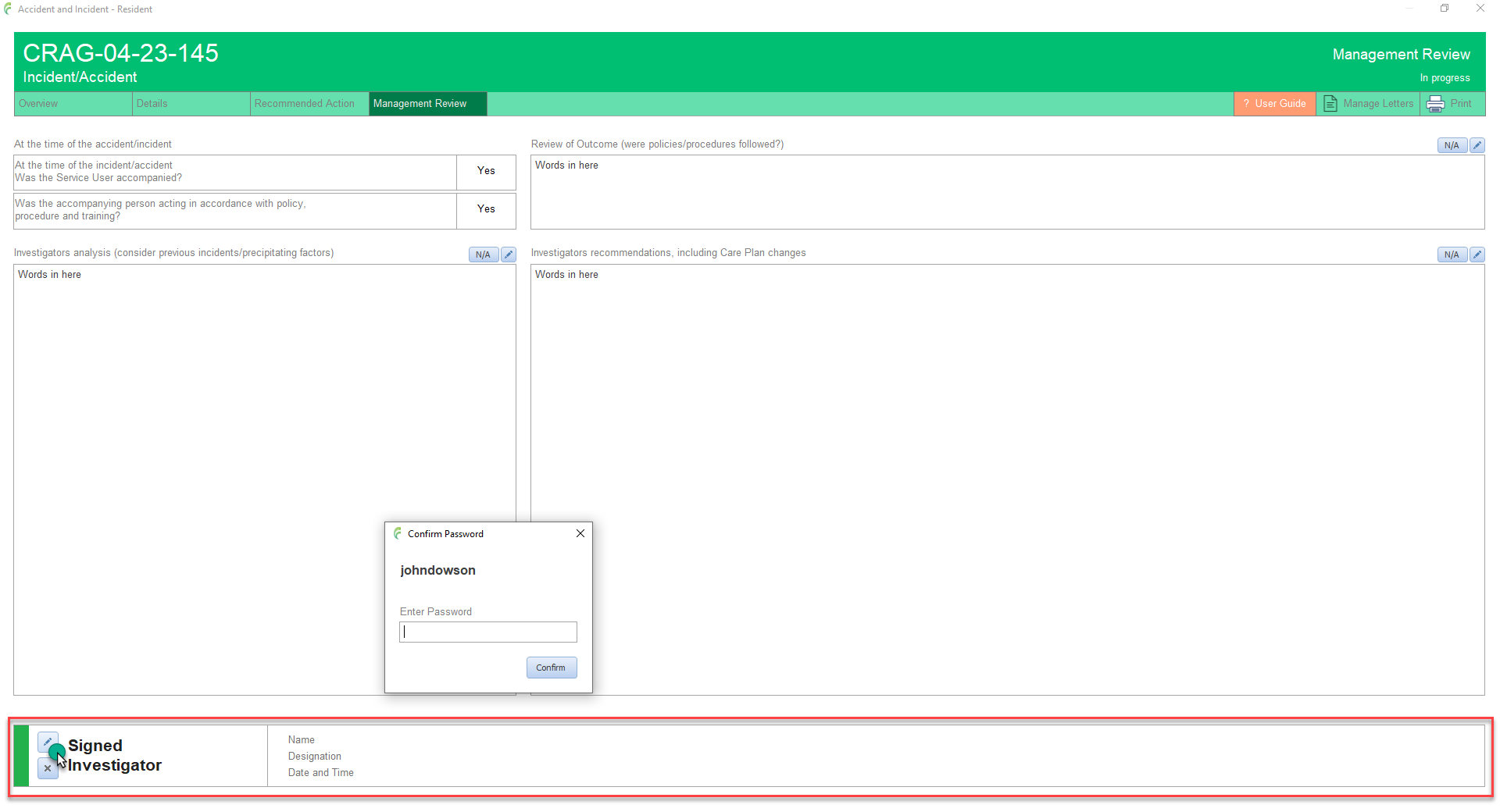
Signing the Signed Investigator box
- Sets the status of the Incident to Incident Closed
- Locks the contents of the form up to this point
For full details of the various stages of an incident, click here
