

HOW DO I ADD A COMPLAINT
Complaints can either be a minor concern or a formal complaint. Note that minor concerns can be escalated to formal complaints, but formal complaints cannot be downgraded to minor concerns
Formal complaints and minor concerns operate in a very similar way except that formal complaints have different approval steps
When adding complaints, the process is identical regardless of the level of complaint
With the complaints section open (QualCare Dashboard > CASI > Complaints), click either Add Formal Complaint or Add Minor Concern (depending on the level of complaint being made)
The add complaint window opens
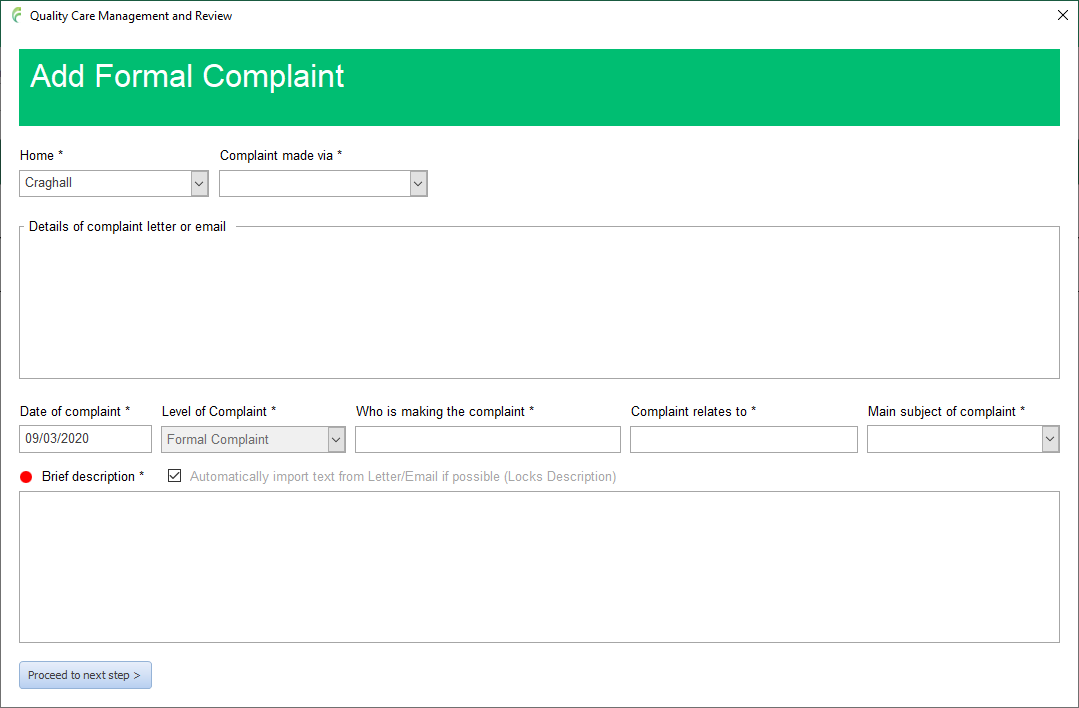
Home
Select the required home. This will be limited to your available homes
Complaint made via
Select the method used to notify the home of the complaint in the Complaint made via box; Email, Letter or Verbal
The next step depends on the selection above
Complaint made via email
When a complaint is made via email, the email (and any attachments) can be automatically imported into CASI
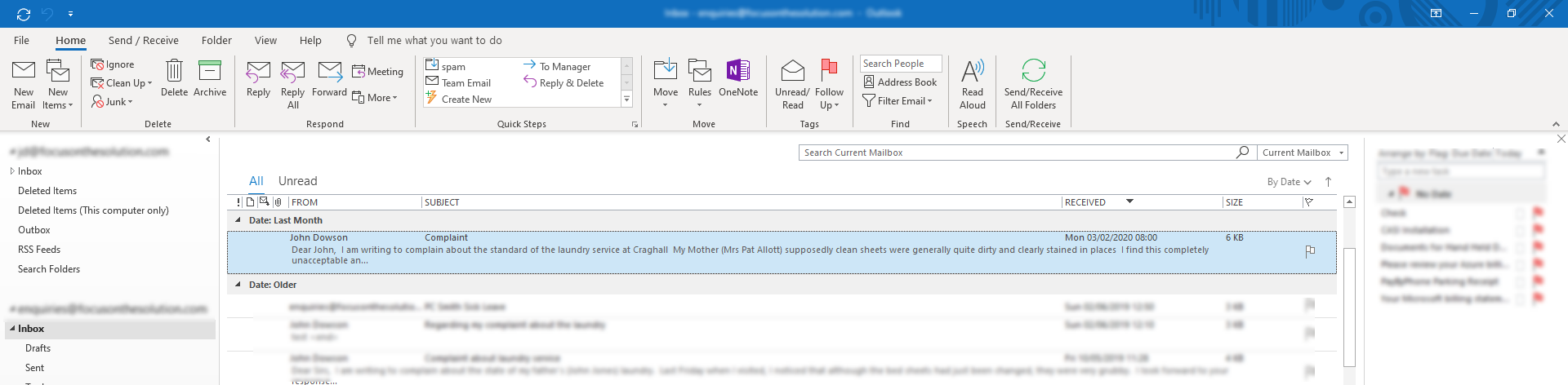
In Outlook, select the required email by clicking on it once (make sure that it is selected but not opened)
Back in the add complaint window, click the import email button and acknowledge the action.
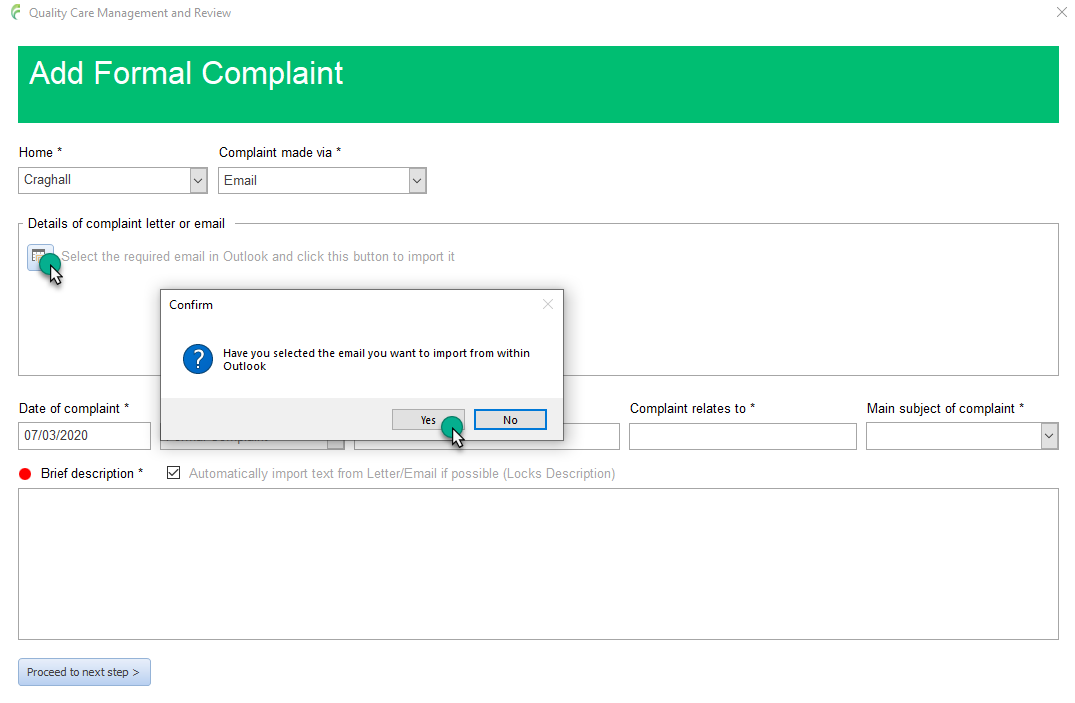
A further prompt appears to say that the date of the complaint will be set to the date of the email. This can be changed if needed
The main body of the email is copied into the brief description box. If this needs to be edited, untick the box Automatically import text from letter/email and then make any required changes
You may find that when emails are imported, some code type characters will appear in this box so it may need a small amount of tidying up
Complaint made via letter
This method will normally be used if the complaint has arrived in the post
The best solution is to scan the letter to pdf and save it somewhere accessible
Click the import letter icon and browse to the saved file and click open to attach the letter to the complaint
When using this method, the brief description field cannot be automatically copied from pdf files so this has to be done manually (untick the box Automatically import text from letter/email to allow use of this field)
Complaint made verbally
If the complaint has been made verbally then there is nothing to import
Simply untick Automatically import text from letter/email and enter details of the complaint
Complainant
Click in the field marked Who is making the complaint to open the add contact window
If you have imported an email. this will window will display information it to enable any contact information to copied and pasted into the contact form

If the complainant is a resident, click Select Resident and select the name from the popup list
If the complainant is a member of staff, click Select Staff and select the name from the popup list
Alternatively, the details can be manually entered
Click Save when finished
Complaint relates to
Click in the field marked Complaint relates to and use the handy lists to select a resident or a member of staff as appropriate. If the complaint is generally aimed towards the home rather than a specific person, use the Set to home button.
The information can of course be entered manually if required
Click Save when finished
Main subject of complaint
Select from the list the main subject area of the complaint. More sub categories can be added later if required. The system will calculate the date that a response is required by and display this towards the top right of the form
An example of a completed form will look something like this

With everything filled in, click Procced to next step
The complaint is added to CASI and a complaint reference is automatically generated which must be used in all correspondence about the complaint
The Incident Management Window will open showing details from the newly added complaint
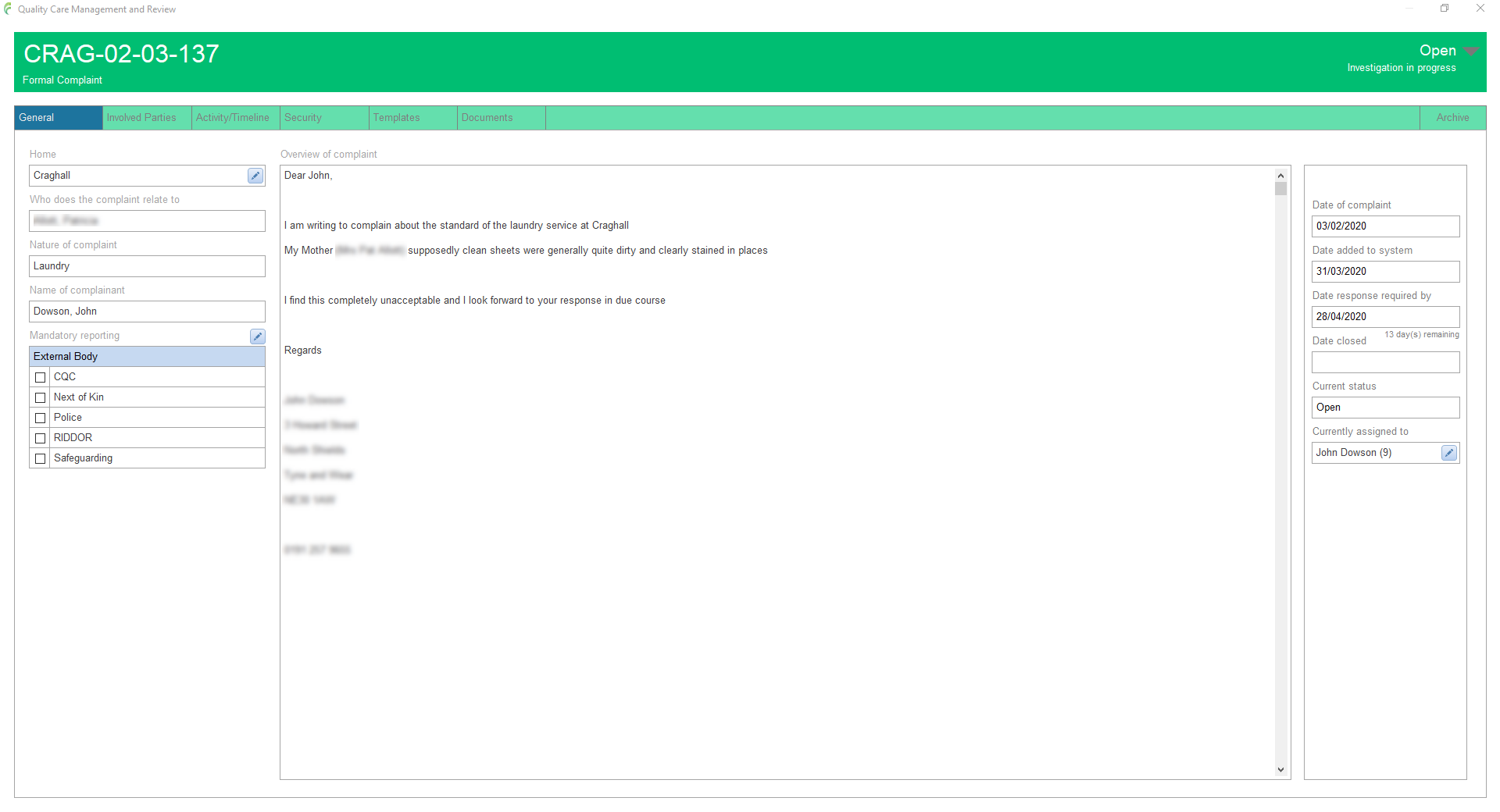
Complaints are automatically initially assigned to the person who added it